IPTV Buffering During Big Games: Why It Happens and How to Stop It
It is the fourth quarter, the score is tied, and your screen freezes on a spinning wheel. If that sounds familiar, you are not alone. IPTV buffering during big games is one of the most common complaints from live sports fans, and it almost always strikes at the worst possible moment.
The good news is that buffering is rarely random. It usually comes from one of three places: the provider’s servers, your home internet, or your streaming device. Below, we explain why big games make it worse, give you a simple three-minute test to find the real culprit, share ten fixes that work on a Firestick, Android TV and Smart TV, and show how B1G IPTV helps you get through game day without the spinning wheel.
Quick note: no provider or internet plan can promise zero buffering on every game. The goal is to remove the causes you can control and to choose a service that is built for peak demand. Always stream in line with the laws where you live.
Why Does IPTV Buffering Get Worse During Big Games?
Buffering simply means your device ran out of video before the next piece arrived. On a quiet Tuesday evening that rarely happens. During a playoff game, a Super Bowl party or a UFC title fight, several things go wrong at once.
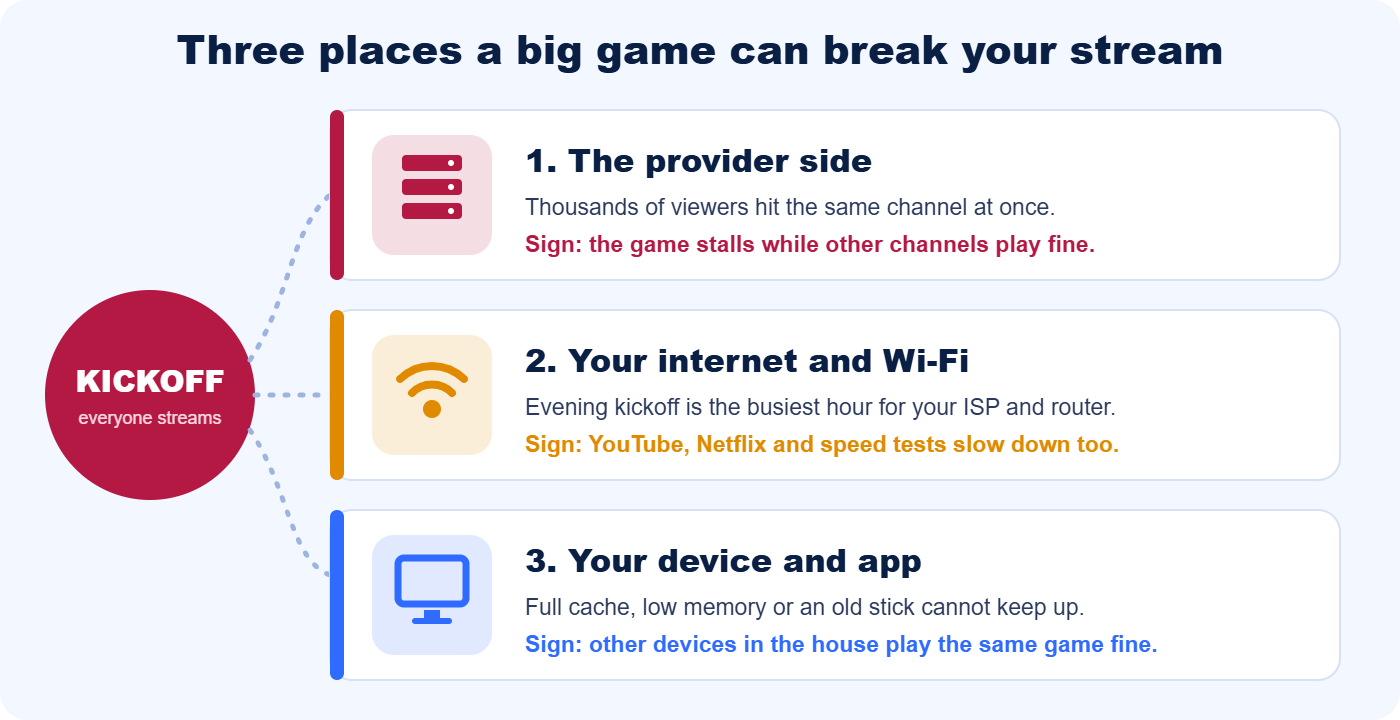
Everyone presses play at the same moment
Live sports cannot be preloaded. Every viewer needs the same moment of the game at almost the same second, so demand spikes in a way that on-demand shows never do. Even the biggest platforms struggle: Netflix reported around 65 million concurrent streams for the 2024 Jake Paul vs. Mike Tyson fight, and many viewers still saw stalls, while the Super Bowl has a long history of video lag complaints. Smaller services have even less room to absorb a sudden surge.
Live streams have almost no safety cushion
With a movie, your app can download several minutes ahead. With live TV, the player keeps only a few seconds of video in reserve because the picture has to stay close to real time. If your connection dips for a moment, there is nothing left to play, and the screen stalls.
4K and fast motion need more bandwidth
Football, basketball and MMA are some of the hardest content to compress, with constant camera pans and fast action. A 4K stream of a game can need several times the bandwidth of a calm drama. If your speed is borderline, live sports is where it shows first.
Your home network is busiest at kickoff
Game time is also family time. Phones, tablets, consoles and a second TV all compete for the same connection. Evening kickoffs also overlap with the busiest hours on many neighborhood networks, so your internet provider can slow down even when a speed test looked fine earlier in the day.
Is It Your Internet or Your IPTV Provider? A 3-Minute Test
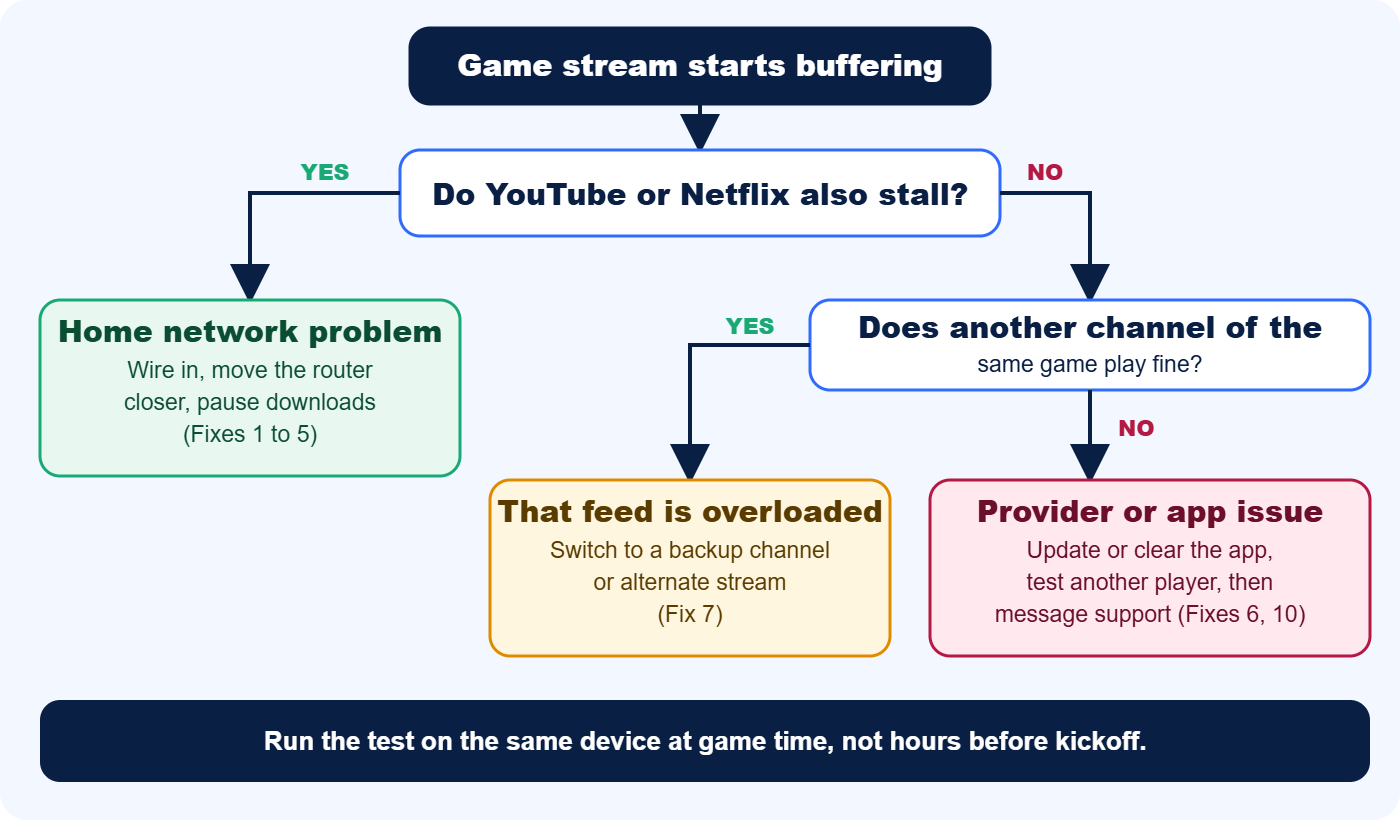
Before you change anything, find out where the problem is. This takes about three minutes and saves a lot of guessing. Run it on the same device that is buffering, ideally while the game is on.
- Test another app. Open YouTube or Netflix on the same device and play something in HD. If it stalls too, your home network is the problem.
- Test another channel. Switch to a different channel carrying the same game, or any other live channel. If that one plays smoothly, the first feed is overloaded and your connection is fine.
- Run a speed test. Use a tool such as Fast.com on the same device. If the speed is healthy but every IPTV channel still stalls, the cause is likely the provider’s servers or the app.
| What you see | Likely cause | Where to start |
|---|---|---|
| YouTube and Netflix stall too | Home network or ISP | Fixes 1 to 5 |
| Only one channel stalls | Overloaded feed | Fix 7 |
| All IPTV channels stall, speed test looks fine | Provider or app | Fixes 6 and 10, then contact support |
| Only one device in the house stalls | Device or app | Fixes 5 and 6 |
| Stalls only at peak hours | ISP congestion or provider load | Fixes 2, 8 and 9 |
If your results point to the provider side more than once, it may be time to look at a service built for peak demand. We cover what to look for later in this guide.
10 Fixes to Stop IPTV Buffering Before Kickoff
Work through these in order. The first five solve most home network problems and take less than ten minutes in total.
1. Use a wired connection
Wi-Fi is the most common weak spot. Walls, distance and your neighbors’ networks all cause small dips that a live stream cannot hide. A wired Ethernet connection removes that whole category of problem. Most Firestick models support an Ethernet adapter, and many Android TV boxes and Smart TVs have a port built in.
2. Move closer to the router or switch to 5 GHz
If you cannot run a cable, move the router closer to the TV or put the TV on the 5 GHz band. 5 GHz is faster and less crowded than 2.4 GHz, although it covers a shorter distance. Keep the router out of cabinets and away from microwaves and thick walls.
3. Lower the resolution
4K looks great, but it needs the most bandwidth. If the stream stutters, drop to 1080p or 720p in your player settings for the game. A smooth HD picture beats a frozen 4K one every time, and you can switch back after the final whistle.
4. Free up bandwidth at kickoff
Pause cloud backups, game downloads and software updates, and close streams you are not watching. If someone is streaming 4K video in another room, ask them to switch to HD for a couple of hours. This one change often fixes buffering on its own.
5. Restart the router and your device
Unplug the router for 30 seconds, plug it back in, and restart your streaming device too. It sounds basic, but it clears memory and network glitches that build up over days. Do it 30 minutes before kickoff, not at halftime.
6. Update the app and clear the cache
An outdated or bloated app can stutter even on a perfect connection. Update your IPTV player, clear its cache and restart it. On Android TV and Firestick, the Clear cache option sits in the app’s page inside your Applications settings.
7. Switch to a backup channel or stream
Popular games are often carried on several channels or feeds. If the main one stalls, switch to an alternate and come back later. Check your backup before the game starts, so you are not scrolling through channels during the action.
8. Try a faster DNS
Your internet provider’s default DNS can be slow at peak times. Switching your router or device to a public DNS such as Cloudflare (1.1.1.1) or Google (8.8.8.8) sometimes helps channels load faster. It is a small tweak, not a miracle, so test it rather than assume.
9. Test with and without a VPN
A VPN can help if your ISP slows video traffic, but it can also add delay and cause buffering. If you use one, test the stream with it off and then on, and keep whichever is smoother. If it is slower with the VPN on, leave it off for live sports.
10. Adjust the player buffer and decoder
Many IPTV players include a buffer size or decoder option. A larger buffer gives the stream more cushion against short dips, but it adds a few seconds of delay. If you see choppy video rather than full stops, try switching between hardware and software decoding. Check your player’s settings for these options.
How to Stop Buffering on a Firestick
The Fire TV Stick is one of the most popular IPTV devices in the US, and it is also easy to overload. If you have ever searched for why your Firestick keeps buffering, these steps cover most cases:
- Restart it properly. Go to Settings, then My Fire TV, then Restart, instead of just unplugging it.
- Clear the app cache. Open Settings, then Applications, then Manage Installed Applications, choose your IPTV player and select Clear cache.
- Free up storage. A nearly full Firestick slows down, so uninstall apps you never use.
- Use an Ethernet adapter. A wired connection is far steadier than Wi-Fi, especially if the stick sits far from the router.
- Check your Wi-Fi signal. In the network settings, look at the signal strength. If it is weak, move the router or add a mesh node.
- Close background apps. Other apps running behind your player compete for memory on a small device.
Firestick keeps buffering but your internet is fine? Then test another channel, update the app and try a lower resolution. If you want a clean start, our B1G IPTV installation guide walks you through installing the B1G Player on Firestick and Android devices.
Smart TV and Android TV Buffering Fixes
Smart TVs and Android TV boxes have their own quirks. Built-in Wi-Fi chips are often weaker than a dedicated streaming device, and older TV processors can struggle with live 4K.
- Consider a stick or box. If your TV is several years old, a Firestick or Android TV box usually has a faster processor and a better Wi-Fi chip.
- Use Ethernet whenever the TV has a port.
- Update the firmware and the app. Updates often fix playback bugs and memory problems.
- Turn off heavy picture processing such as motion smoothing, which adds processing load and delay to live video.
- Do a full restart. Hold the power button or unplug the TV for a minute before the game.
Not sure which device to use? B1G IPTV works on Amazon Firestick and Fire TV, Android TV and boxes, Samsung and LG Smart TVs, iPhone and iPad, and Windows or Mac computers, so you can start with the screen you already own.
How Much Internet Speed Do You Need for Live Sports?
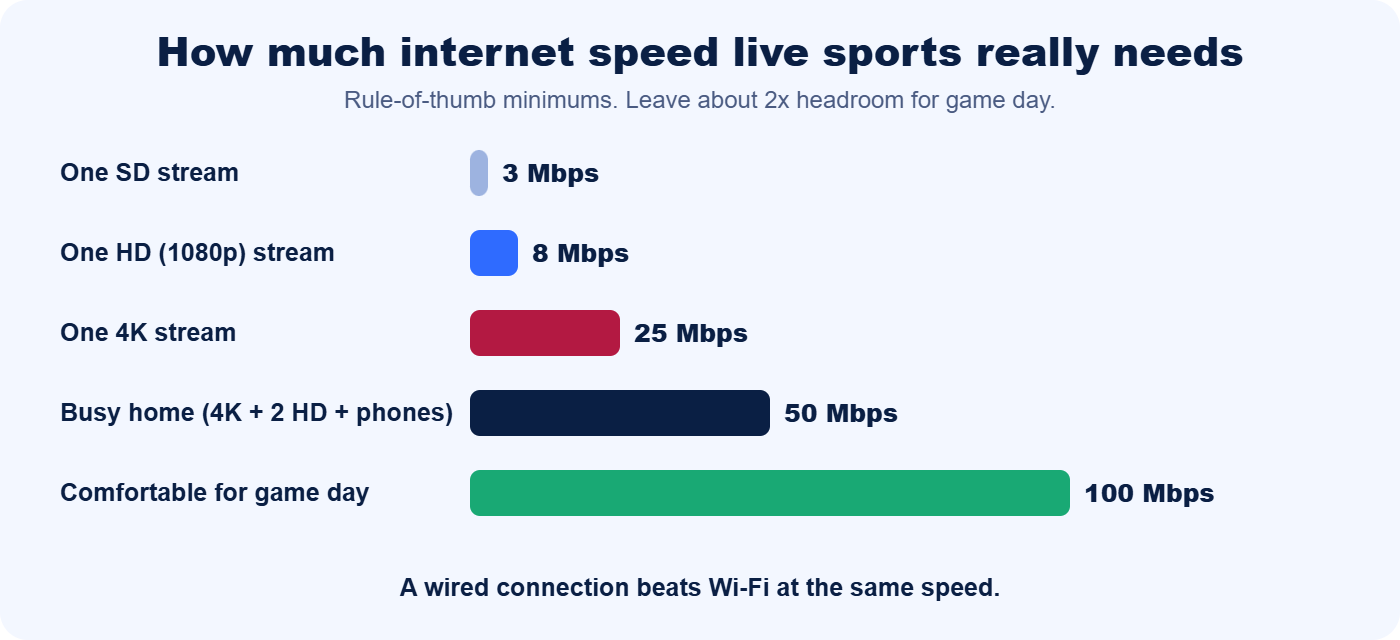
Requirements vary by provider and stream, but these rules of thumb work well for live sports:
| What you are watching | Rough minimum | Better target |
|---|---|---|
| One SD stream | 3 Mbps | 5 Mbps |
| One HD (1080p) stream | 8 Mbps | 15 Mbps |
| One 4K stream | 25 Mbps | 40 Mbps |
| Busy home (4K, two HD streams, phones) | 50 Mbps | 100 Mbps |
Two things matter more than the headline number. First, the speed you actually get on the device, not the speed on your plan, because weak Wi-Fi can cut a 100 Mbps plan down to a fraction. Second, headroom: if a game needs 25 Mbps and your connection delivers 30, any small dip means buffering. Aim for roughly double what you need.
Game-Day Kickoff Checklist for NFL, NBA, UFC and More
A five-minute routine before the game beats a ten-minute panic during it. Use this timeline for any big event, from Sunday football to a pay-per-view fight night.
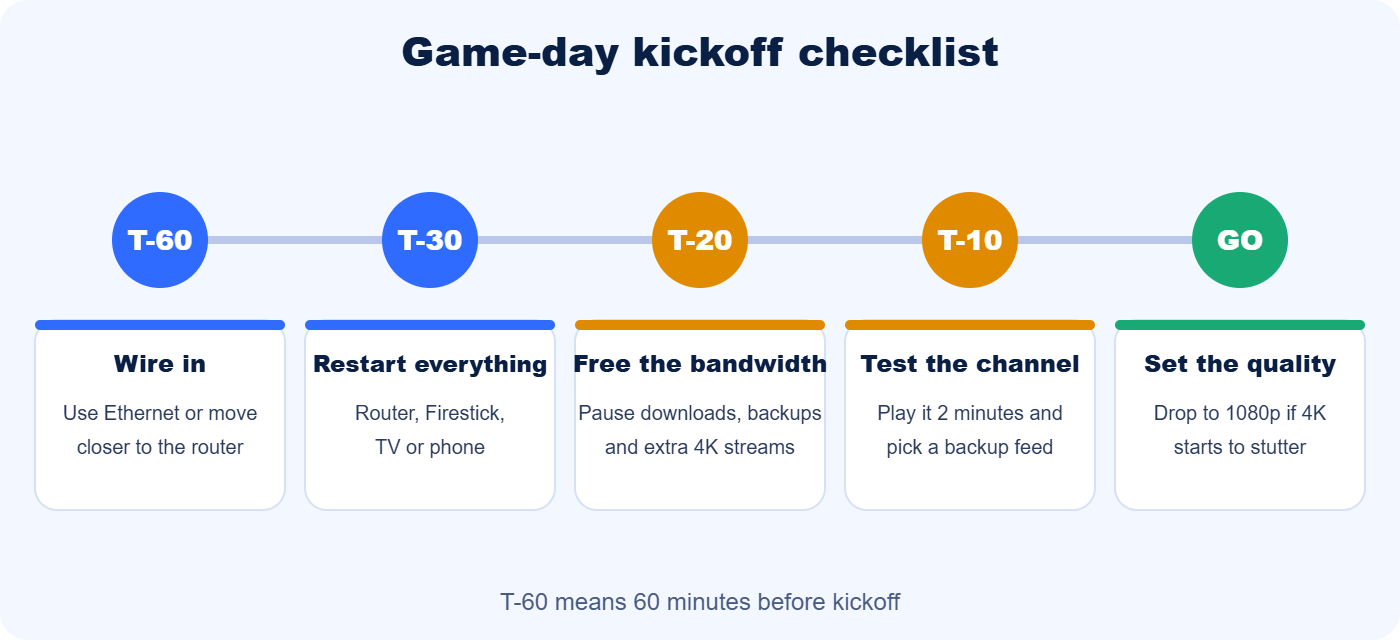
Playoff games, rivalry matchups and PPV main events draw the biggest crowds, so they deserve the most preparation. For league-specific tips, see our guides to NFL IPTV, NBA and MLB IPTV, UFC IPTV and NHL and MLS IPTV.
What a Reliable IPTV Service Looks Like
Even a perfect home setup cannot fix a service that is not built for peak demand. When you compare IPTV providers, look for these signs:
- A real trial. You should be able to test the service on your own device before paying, ideally on a busy evening.
- Fast human support. If a stream fails at kickoff, you want a person on WhatsApp or chat, not a ticket queue.
- Backup channels. Big games should be easy to find on more than one channel, so one overloaded feed does not ruin your night.
- Quality options. You should be able to choose HD or 4K to match your connection.
- Clear device support and an easy app. Setup should take minutes, not an evening.
- Honest claims. Be careful with promises like “never buffers.” No provider can guarantee that on every game.
How B1G IPTV Helps You Beat Game-Day Buffering
Fixing your home setup is only half the job. The other half is the service itself. Here is how B1G IPTV answers each problem we covered above:
| The problem on game day | How B1G IPTV helps |
|---|---|
| One feed stalls and you have nowhere else to go | 40,000+ live channels on Standard and 80,000+ on Premium, including the major US sports networks, so you have backup channels to switch to. |
| 4K is too heavy for your connection | HD and 4K streams with an on-screen TV guide, so you can pick the quality that matches your speed. |
| Freezing when a big match goes live | Anti-freeze streaming aimed at game-night traffic. The easiest way to confirm it is to test it during a live game on the free trial. |
| You are not sure the service will hold up | A free 6-hour trial, so you can test channels, picture and stability on your own network before paying. |
| Stream fails at kickoff and you need help fast | WhatsApp support, with priority help on Premium plans, so a real person can check your account and the feed. |
| App or setup trouble on Firestick or Smart TV | The free B1G Player and a step-by-step installation guide. One login works on Firestick, Android TV, Samsung and LG Smart TVs, phones and computers. |
| Locked into an expensive contract | Plans from $15 a month, with 3, 6 and 12-month options. The longer plans cost less per month, and there is no cable box or contract. |
No service can promise zero buffering, and we will not claim that either. What we can offer is a service you can check for yourself. Start with the free 6-hour trial, run the three-minute test from this guide during a real game, and see how the stream holds up. If you like it, compare the B1G IPTV subscription plans. If a stream stalls during your test, message our team and tell us what you see, and we will help you work out whether it is your setup or the feed. Not sure what to include in your message? See our guide to IPTV customer support during live events.
Frequently Asked Questions
Why does IPTV buffer during big games?
Because demand spikes at kickoff. Provider servers, internet networks and home Wi-Fi are all busiest at the same time, and live streams keep only a few seconds of video in reserve, so any dip shows up as buffering.
Why does IPTV freeze or lag only at night or on weekends?
Evenings and weekends are peak hours for both your neighborhood internet and IPTV servers. A wired connection, a lower resolution and a backup channel help the most. If every app slows down at the same hours, ask your internet provider about congestion in your area.
What should I do if my stream buffers in the middle of a game?
Switch to a backup channel first, then drop the resolution to 1080p or 720p, pause other devices on your network and restart the app. If every channel keeps stalling, message support on WhatsApp so the team can check your account and the feed.
How much internet speed do I need for IPTV sports?
As a rule of thumb, about 8 Mbps for each HD stream and 25 Mbps for each 4K stream. A busy household should aim for 50 to 100 Mbps, which leaves headroom for phones, laptops and other TVs.
Why does my Firestick keep buffering when my internet is fine?
A speed test only measures your connection at one moment. A weak Wi-Fi signal, a full cache, low storage, an outdated app or an overloaded channel can all cause buffering on a Firestick. Try Ethernet, clear the app cache, restart the stick and test another channel.
Does a VPN help or hurt IPTV buffering?
It depends. A VPN can help if your ISP slows video traffic, but it can also add delay and slow the stream. Test with and without it, and keep whichever setting is smoother.
Does Ethernet really reduce buffering?
Yes, in most homes. A wired connection avoids the interference, distance and walls that weaken Wi-Fi, which makes it the most reliable single fix for live sports.
Is 1080p better than 4K for live sports?
If your connection is borderline, yes. A stable 1080p stream looks better than a 4K stream that keeps freezing. Use 4K only when your speed and Wi-Fi can handle it.
How do I know if the provider is the problem?
Run the three-minute test. If other apps stream smoothly, a speed test looks healthy and every IPTV channel still stalls, the cause is likely the provider or the app rather than your home network.
Can I test B1G IPTV before I pay?
Yes. Message B1G IPTV on WhatsApp to request a free 6-hour trial, then test it on your own device and network, ideally during a live game.
Final Thoughts: Beat Buffering Before Kickoff
Buffering during big games is frustrating, but it is fixable more often than not. Find the cause with the three-minute test, work through the fixes above, and prepare your setup before kickoff instead of at halftime.
Ready to see how a stream holds up on game night? Start your free B1G IPTV trial, install the B1G Player and test it on the next big game. Questions? Visit our contact page or browse more guides on the B1G IPTV blog.